

If you want to know how to turn off two factor authentication, the usual path is simple: open your account settings, go to security or sign-in options, find two-factor authentication, and choose turn off, disable, or remove. The part people often skip is what happens after that. Once 2FA is gone, your password becomes the main barrier between your account and anyone trying to get in.
That does not mean you should never disable it. Sometimes you are changing phones, replacing SMS codes with a better method, recovering an account, or fixing a broken login setup. The safer move is to treat 2FA as something you manage carefully, not as an annoying switch you turn off and forget.
What 2FA Does
Two-factor authentication adds an extra step after your password. That second check may be a text code, authenticator app, passkey, hardware security key, biometric prompt, or approval from a trusted device. The point is simple: even if someone knows your password, they still need another proof that they are really you.
This matters because passwords fail in very normal ways. People reuse them, save them on shared devices, enter them into fake login pages, or lose them through data breaches. 2FA does not make an account impossible to break into, but it adds friction at the exact moment an attacker hopes the door is wide open.
Why People Turn Off Two Factor Authentication
Most people who look up how to turn off two factor authentication are not trying to weaken their accounts. They are usually stuck. Maybe a phone was lost, an authenticator app was deleted, a number changed, or login codes stopped arriving at the worst possible time.
There is also simple login fatigue. When every app wants a code, confirmation, backup email, or phone prompt, security starts to feel like a chore. That frustration is understandable, but it often means the 2FA method is wrong for the user, not that the account should be left with no second layer.
When Turning Off 2FA Makes Sense
Turning off 2FA can make sense when you are replacing a weaker method with a stronger one. For example, removing SMS codes and switching to a passkey, authenticator app, or physical security key can actually improve security. In that case, you are not removing protection; you are changing how the account confirms your identity.
It may also be reasonable during account recovery, especially if your current 2FA method is broken and the platform requires you to remove it before adding a new one. The key is to keep that window short. A temporary change is manageable; leaving the account unprotected for weeks is where the risk grows.
Risks of Disabling 2FA
The biggest risk is that your password becomes the whole defense. If that password is leaked, reused, phished, guessed, or stored in an unsafe place, an attacker has a much easier path into the account. With 2FA enabled, a stolen password is often not enough on its own.
Another risk is account chaining. Your email, for example, may be connected to banking alerts, shopping accounts, cloud storage, social media, hosting, and password resets. If someone gets into that email account, they may be able to unlock far more than one inbox.
Before You Turn Off 2FA
Before you change anything, check your recovery details. Make sure your recovery email is up to date, your phone number still belongs to you, and your backup codes are stored somewhere safe. If those details are old, disabling 2FA can make the account easier to steal and harder to recover.
You should also review signed-in devices and active sessions. An old phone, shared computer, browser session, or connected third-party app may still have access. Many people focus only on the 2FA toggle, but existing sessions can be just as important as the login method itself.
How to Turn Off Two Factor Authentication
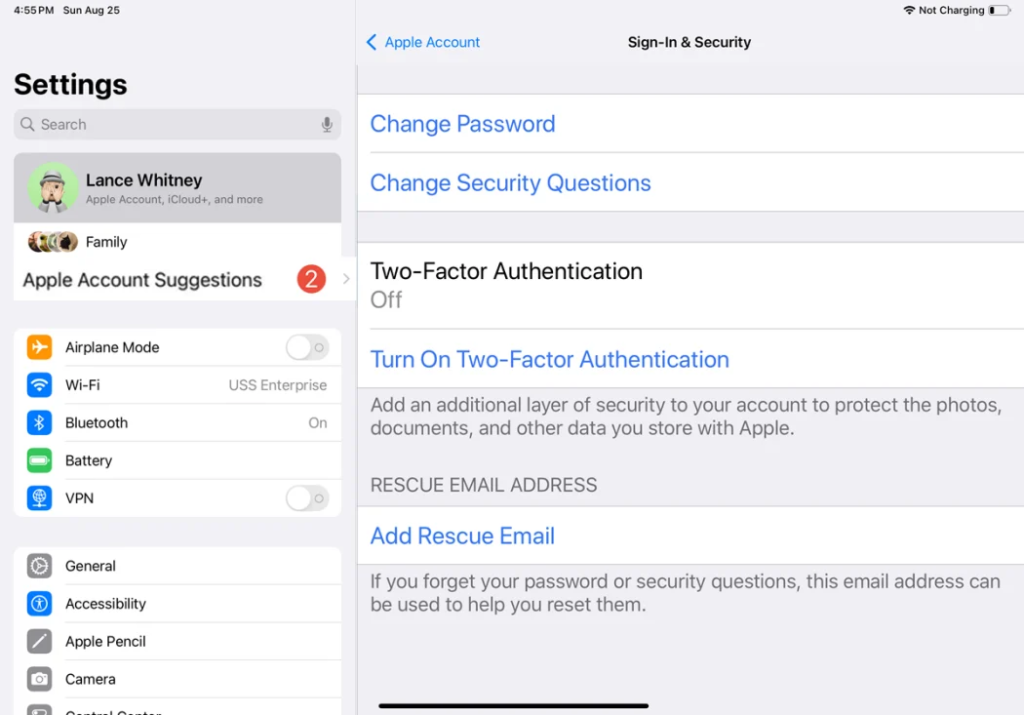
The steps vary by platform, but the pattern is usually similar. Sign in, open settings, go to security or sign-in options, choose two-factor authentication or two-step verification, and select disable, remove, or change method. Most services will ask for your password again or require one final code before the change is accepted.
The wording can differ across Google, Microsoft, Facebook, Instagram, GitHub, Apple, banking apps, and work accounts. Some call it 2FA, others two-step verification, and others multi-factor authentication. If the account is managed by a workplace, school, or organization, you may not be allowed to turn it off yourself.
Also Read: How to Move Windows 11 Taskbar
If You Lost Your Phone
A lost phone creates two problems at once. You may not be able to receive 2FA codes, and the missing phone may still be signed in to important accounts. People usually focus on the first problem because it blocks login, but the second can be more dangerous.
Start with any trusted device that is still signed in, such as a laptop, tablet, or old browser session. From there, remove the lost phone, update your recovery number, add a new authentication method, and regenerate backup codes if the platform allows it. If the phone is truly gone, use device-locking or remote-erase tools before someone else gets a chance to explore it.
Safer 2FA Alternatives
If codes are the problem, passkeys are worth considering. They can let you sign in with your device lock, fingerprint, face recognition, or security key, depending on the platform. They are also harder to phish because they are tied to the real website or app, not just a code you type into a box.
Authenticator apps are still a good middle ground for many people. They work without a mobile signal and avoid some of the risks associated with phone numbers. SMS codes are better than nothing, but for email, banking, business, cloud, or crypto accounts, they should usually be treated as a fallback rather than the main method.
Protect Your Account After 2FA
If you have already turned off 2FA, strengthen the rest of the account right away. Use a long, unique password, remove unknown devices, update recovery details, and enable login alerts. These steps do not fully replace 2FA, but they reduce the damage if something goes wrong.
Pay close attention to your recovery email. An account is only as secure as the email or phone number used to recover it. If your main account has a strong password but your recovery email is weak, attackers may simply take the easier route.
When Not to Disable 2FA
You should avoid disabling 2FA on your main email account unless there is no workable alternative. Email is often the control center for password resets, account alerts, receipts, identity checks, and recovery links. Losing it can quickly turn into losing access to many other accounts.
You should also be careful with banking, crypto, tax, domain, hosting, advertising, business manager, and work accounts. If your main reason to know how to turn off two factor authentication is only that codes are annoying, try changing the method first. A passkey, authenticator app, or security key can often solve the inconvenience without leaving the account exposed.
Read More Tech Articles on: Zingyzon.com
FAQs
Can you disable 2FA without logging in?
Usually no; most services require login or account recovery first.
Why is there no turn-off option?
The account may be managed by an organization, or the platform may require 2FA for that account type.
Is a strong password enough?
It helps, but it does not protect against every breach, phishing attempt, or stolen session.
What should you do after turning 2FA off?
Update your password, remove unknown devices, check recovery options, and add a safer replacement as soon as possible.
