

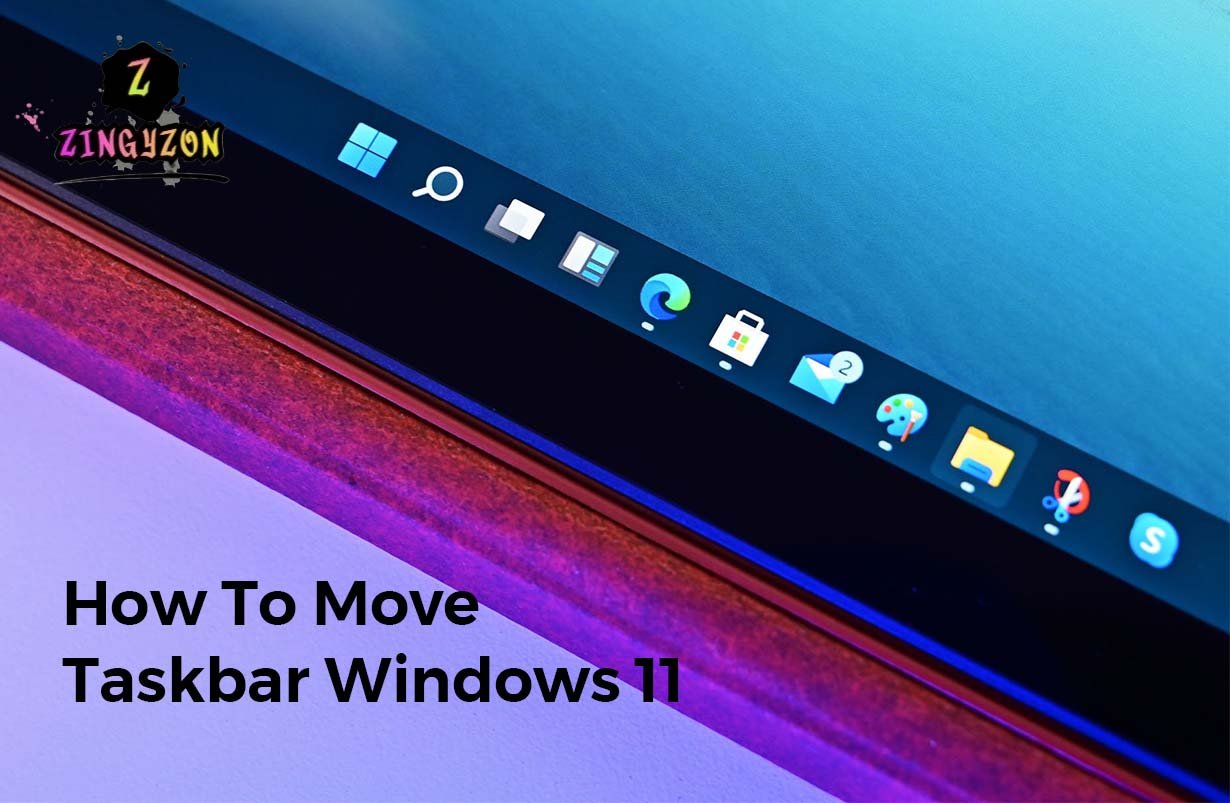
You’re trying to move the Windows 11 taskbar and can’t figure out, here’s the answer most guides bury halfway down the page: you can move the taskbar icons to the left, but you cannot officially move the entire taskbar to the top, left, or right using built-in Windows settings. That’s the reality, and it matters because many users search for “move taskbar” assuming Windows 11 still behaves like Windows 10.
If you want to know how to move Windows 11 taskbar, you’re probably in one of two camps. Either you want the classic Windows layout back with the Start button on the left, or you want the full taskbar relocated because that’s how you worked in Windows 10. Those are very different goals, yet a surprising number of articles treat them like the same thing.
Windows 11 changed more than just the taskbar’s appearance. Under the hood, Microsoft rebuilt major parts of it, and that redesign came with tradeoffs. The interface looks cleaner and behaves better on touch devices, but customization took a clear hit. Power users noticed that immediately.
Why Windows 11 Made Taskbar Movement So Weird
A little context helps here. Back in Windows 10, moving the taskbar was simple. You could drag it to the top, dock it to the left, or place it on the right without much thought. It felt natural because the operating system was built to support that flexibility.
Windows 11 changed that. Microsoft rebuilt the taskbar around a more controlled layout, and the centered icon design wasn’t just cosmetic—it affected how menus, flyouts, notifications, and system panels behave. Once that architecture became more rigid, flexible positioning quietly disappeared.
A common assumption is that Microsoft will eventually restore full taskbar movement. Maybe, but I wouldn’t count on it. Most regular users never move the taskbar. The people who care tend to be developers, traders, designers, sysadmins, and heavy multitaskers with very specific workflows. They’re vocal, but still a minority, and Microsoft’s usage data likely showed this feature wasn’t essential for most users. That doesn’t make the decision good—it just makes it easier to understand.
Windows 11 Move Taskbar to Left
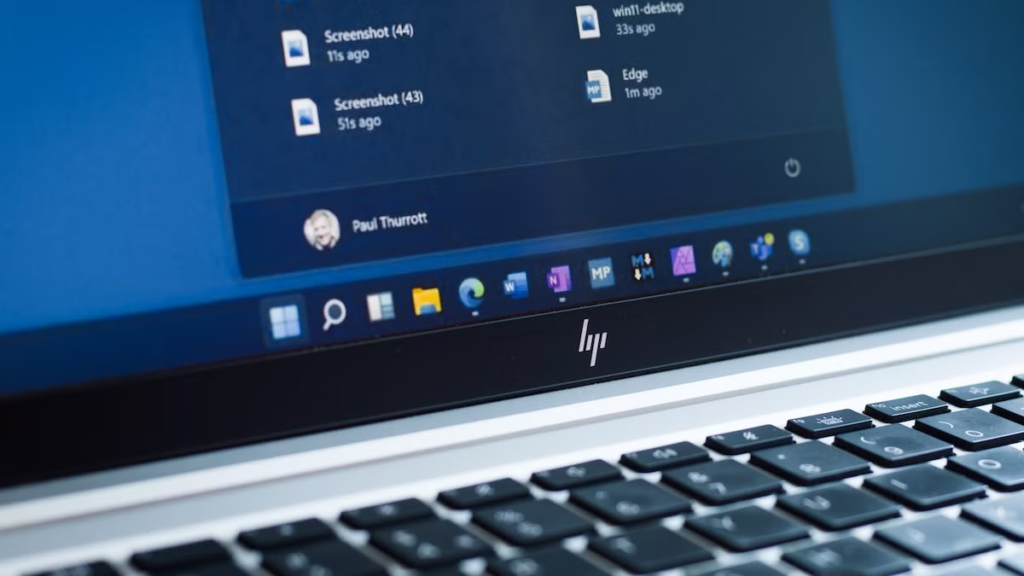
If your real goal is to move the taskbar to the left in Windows 11, you don’t need hacks, mods, or third-party tools. Microsoft still supports this, and it takes less than a minute.
- Right-click an empty area on the taskbar
- Click Taskbar settings
- Scroll to Taskbar behaviors
- Expand the section
- Change Taskbar alignment from Center to Left
Once you do that, your Start button, pinned apps, and running apps shift to the left side, making Windows feel much closer to Windows 10. There’s one important catch, though: this only moves the icons. The actual taskbar remains at the bottom of the screen.
Can You Move the Entire Taskbar?
Short answer: not with native Windows settings. Longer answer: yes, but only with third-party tools—and there are caveats.
These tools can move the taskbar to the top, left, or right, but “can move” doesn’t always mean “works perfectly.” That’s the part most tutorials skip.
For example, moving the taskbar to the top usually works fairly well because Windows still handles horizontal layouts comfortably. Top and bottom placements share similar UI behavior, so fewer things break. Moving it to the left or right is where things get messy. You may notice notification panels opening in strange positions, context menus appearing slightly off-screen, system tray interactions feeling awkward, or search and widgets behaving inconsistently.
These issues don’t happen on every system, but they happen often enough to mention. So if you expect a flawless native experience, you may be disappointed. If you care more about function than perfection, third-party tools can still be useful. That’s a big difference.
Also Read: Windows 10 Display Issues
Moving the Taskbar to the Top Usually Makes the Most Sense
After watching how people actually work, I’ve noticed something interesting: most users who ask how to move taskbar windows 11 don’t really want it on the side, they want it on top.
That makes sense when you think about where your eyes spend most of the day. Browser tabs sit at the top, menu bars are usually there, and developer tools often cluster there too. As a result, moving the taskbar upward can reduce eye movement during long work sessions. It sounds minor, but after eight hours of work, small ergonomic improvements become noticeable.
Developers and traders especially like this setup. There’s also a subtle psychological benefit. Top-mounted taskbars often feel less intrusive because bottom taskbars visually compete with web pages, chat windows, and video controls, making the desktop feel more cluttered. That’s why I usually recommend top placement over left or right unless someone has a very specific workflow.
Tools That Actually Work
If you want to relocate the taskbar fully, the most commonly used tools are Windhawk, StartAllBack, and ExplorerPatcher. Each takes a slightly different approach.
Windhawk is modular. Instead of replacing large Windows components, it applies smaller targeted modifications. I like that design because smaller changes often mean fewer breakages after updates. StartAllBack is polished and user-friendly. It’s paid, but many advanced users prefer it because the experience feels cleaner and more stable.
ExplorerPatcher is popular among enthusiasts who want deep control. It’s powerful, though it can feel more like a power-user tool than something casual users should install without understanding what it changes. If you’re non-technical, I’d lean toward StartAllBack. If you want something free and flexible, Windhawk is hard to ignore.
Here’s the Part Nobody Mentions: Windows Updates Break Things
This catches people off guard. The biggest risk with taskbar customization isn’t malware it’s Windows Update.
That surprises many users because trusted customization tools are generally safe. The real problem is compatibility. Windows feature updates regularly modify Explorer and shell internals, and if your customization software hooks into those components, even small Microsoft changes can cause weird failures.
I’ve seen systems where the taskbar vanished entirely, right-click stopped working, the Start menu refused to open, or icons disappeared randomly. It sounds dramatic, but most of the time it’s fixable. Still, it’s annoying.
Before installing any taskbar customization tool, do yourself a favor and create a restore point. Most people skip this because everything feels fine until something breaks after an update. Five minutes of preparation can save you a lot of frustration later.
Multi-Monitor Users Should Read This First
This is probably the most overlooked issue. If you use multiple monitors, moving the taskbar can behave differently than expected.
Windows 11 still treats the primary display as the command center for several UI elements. Notifications, flyouts, widgets, and quick settings often assume standard taskbar placement. So even if your taskbar moves successfully, some UI elements may still appear based on old positional logic.
This becomes especially noticeable in setups like one ultrawide monitor plus one vertical monitor, triple-screen desk setups, or laptop-docking configurations. People often blame the customization tool when this happens, but sometimes the tool isn’t the problem at all. Windows itself still assumes bottom-taskbar behavior in several places. That distinction matters.
Is Moving the Taskbar Even Worth It?
Sometimes users want the taskbar moved simply because “that’s how I’ve always done it.” That’s habit, not necessarily optimization, and those aren’t always the same thing. A left-side taskbar made a lot of sense during the transition to widescreen displays because vertical screen space felt precious and side-mounted navigation was efficient.
Today, you might not need it. Modern workflows rely heavily on keyboard shortcuts, Snap layouts, virtual desktops, search, and window management hotkeys. If you already use Alt + Tab, Win + Number, and snapping shortcuts, taskbar position matters less than it used to.
This is the contrarian take most articles avoid. Sometimes the best move is not moving it. Try left-aligned icons first and live with them for a week. You may realize that solves most of your frustration without introducing new problems.
What to Do If Something Breaks
If your taskbar stops working after customization, don’t panic or immediately reinstall Windows. Start simple.
Disable the customization tool and restart Explorer. That alone fixes many issues. If the problem remains, check whether a Windows update recently installed. Developers of shell tools usually release compatibility patches fairly quickly.
Worst case, uninstall the tool and revert to default behavior. That’s another reason I prefer software-based customization over registry hacks. Recovery is easier, and easier recovery usually means less stress.
Read More Tech Articles on: Zingyzon.com
FAQs
Can I move the Windows 11 taskbar to the left?
Yes, but only the icons. Go to Taskbar settings and change alignment from Center to Left.
Can I move the taskbar to the top?
Not officially. You’ll need tools like Windhawk or StartAllBack.
Why did Microsoft remove taskbar movement?
Windows 11 introduced a redesigned taskbar architecture focused on simplified layouts and touch-friendly behavior.
Is using taskbar customization software safe?
Usually yes, if you choose reputable tools. The bigger concern is compatibility after major Windows updates.
