

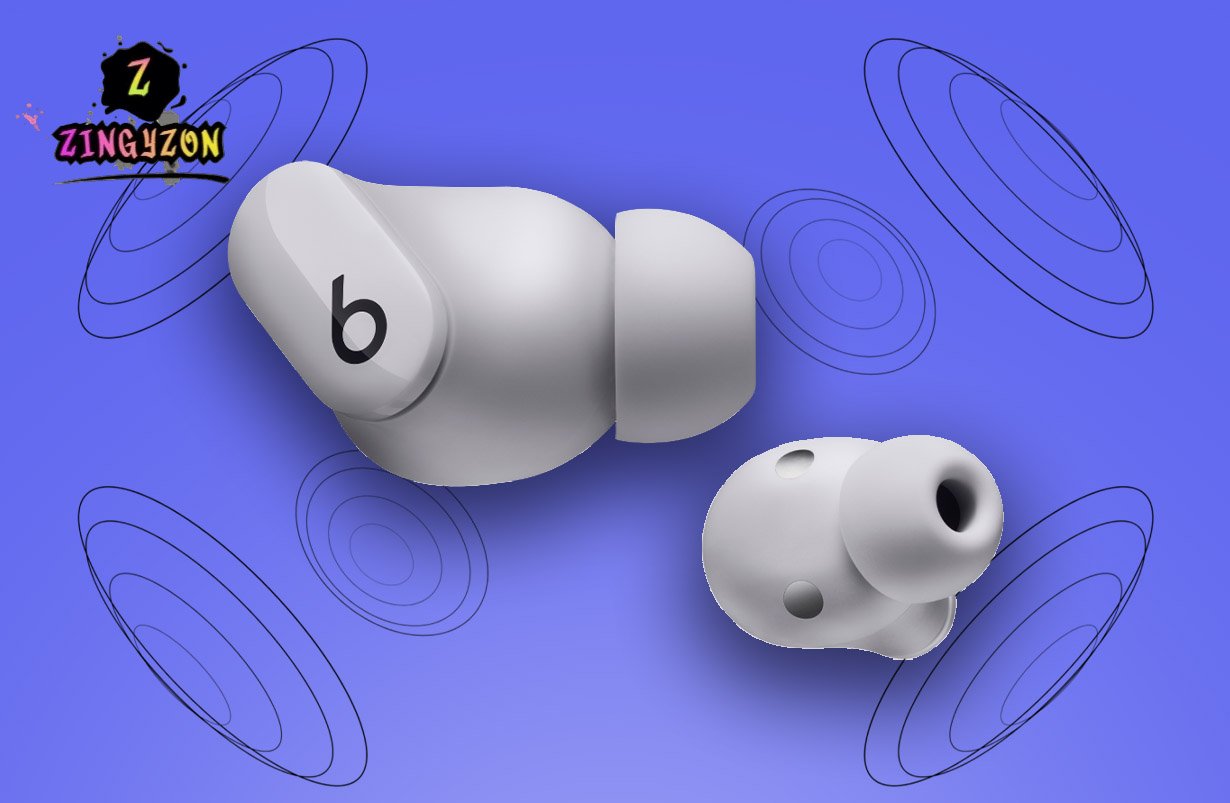
If your Beats Studio Buds won’t connect, keep disconnecting from Bluetooth, or only one earbud is working, performing a reset is often the fastest way to fix the problem.
Quick Answer
To reset Beats Studio Buds, place both earbuds in the charging case and leave the lid open. Press and hold the system button inside the case for about 15 seconds, until the LED indicator flashes red, then white. Release the button and re-pair the earbuds with your device.
This process restores the earbuds to factory settings and resolves many common issues, including pairing failures, audio glitches, and Bluetooth connection problems.
In this guide, you’ll learn:
- How to reset Beats Studio Buds
- How to factory reset Beats Studio Buds
- How to put Beats Studio Buds in pairing mode
- How to connect Beats Studio Buds to iPhone
- How to pair Beats Studio Buds with Android, Mac, and Windows
- How to wear Beats Studio Buds properly
- How to troubleshoot common Beats Studio Buds issues
Quick Reset Steps
| Step | Action |
| 1 | Place both earbuds in the charging case |
| 2 | Leave the case lid open |
| 3 | Press and hold the system button |
| 4 | Wait for the LED to flash red and then white |
| 5 | Release the button |
| 6 | Re-pair the earbuds with your device |
Estimated time: Less than 1 minute.
When Should You Reset Beats Studio Buds?
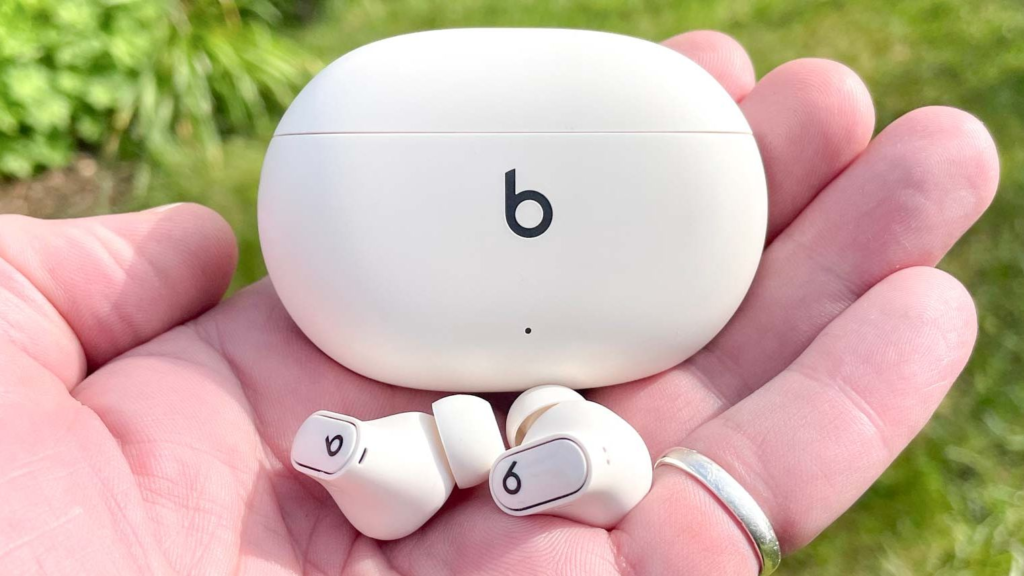
A factory reset is useful when your earbuds aren’t functioning normally.
You may need to reset your Beats Studio Buds if:
- The earbuds won’t connect to Bluetooth
- Your phone can’t find the earbuds
- Only one earbud is producing sound
- Audio keeps cutting out
- Active Noise Cancellation isn’t working correctly
- The earbuds won’t enter pairing mode
- You’re switching to a new phone or computer
- You’re selling or giving away the earbuds
Many users assume these problems indicate hardware failure. In reality, connection and software issues are often the cause, and a reset frequently solves them within minutes.
How to Reset Beats Studio Buds
Follow these steps to perform a factory reset.
Step 1: Place Both Earbuds in the Charging Case
Insert both earbuds into the charging case.
Make sure they are seated properly and have sufficient battery charge.
Step 2: Leave the Lid Open
Keep the charging case open throughout the reset process.
Step 3: Press and Hold the System Button
Locate the small system button inside the charging case.
Press and hold it for approximately 15 seconds.
Step 4: Watch the LED Indicator
The LED status light will flash:
- Red
- Then white
Once the light begins flashing white, release the button.
Step 5: Reconnect Your Earbuds
The reset is complete.
Your Beats Studio Buds have now returned to factory settings and are ready to pair with a device again.
Beats Studio Buds LED Indicator Meanings
Many users search for LED light meanings while troubleshooting.
Use this table as a quick reference.
| LED Status | Meaning |
| Flashing White | Pairing mode |
| Solid White | Connected or ready |
| Red | Low battery or charging |
| Flashing Red and White | Reset process |
| No Light | Battery depleted or case closed |
Understanding these indicators can help diagnose connection and charging issues more quickly.
How to Put Beats Studio Buds in Pairing Mode
After a reset, you’ll need to place the earbuds into pairing mode.
Steps
- Place both earbuds inside the charging case.
- Open the case lid.
- Press and hold the system button.
- Wait for the LED indicator to flash white.
The flashing white light confirms that your Beats Studio Buds are discoverable and ready to connect.
If the LED does not flash white, ensure the earbuds and charging case have sufficient battery power before trying again.
How to Connect Beats Studio Buds to iPhone
Beats Studio Buds integrate seamlessly with Apple devices.
Automatic Pairing
- Enable Bluetooth on your iPhone.
- Unlock your iPhone.
- Open the Beats charging case near the phone.
- Wait for the setup animation to appear.
- Tap Connect.
- Follow the on-screen instructions.
The entire process typically takes less than 30 seconds.
Manual Pairing
If the pairing card doesn’t appear:
- Put the earbuds into pairing mode.
- Open Settings > Bluetooth.
- Tap Beats Studio Buds under available devices.
- Wait for the connection confirmation.
Also Read: Best Wireless Earbuds Under $100 in 2026
How to Connect Beats Studio Buds to Android
Android users can connect using standard Bluetooth pairing or Google’s Fast Pair feature.
Using Fast Pair
- Enable Bluetooth and Location Services.
- Open the charging case near your phone.
- Wait for the Fast Pair notification.
- Tap Pair.
Manual Android Pairing
- Open Bluetooth settings.
- Put the earbuds into pairing mode.
- Select Pair New Device.
- Choose Beats Studio Buds from the list.
Once paired, the earbuds should reconnect automatically whenever Bluetooth is enabled.
Does This Reset Method Work for Beats Studio Buds+?
Yes.
The reset procedure is essentially the same for both:
- Beats Studio Buds
- Beats Studio Buds+
Place the earbuds in the charging case, leave the lid open, and hold the system button until the LED flashes red and then white.
If you own Beats Studio Buds+, the instructions in this guide still apply.
Common Beats Studio Buds Problems and Solutions
Beats Studio Buds Won’t Connect
Possible fixes:
- Turn Bluetooth off and back on.
- Forget the earbuds from Bluetooth settings.
- Restart your device.
- Perform a factory reset.
- Charge both earbuds fully.
Only One Earbud Works
Try the following:
- Charge both earbuds.
- Clean charging contacts.
- Place both earbuds in the case for 30 seconds.
- Reset and re-pair the earbuds.
Beats Studio Buds Won’t Enter Pairing Mode
Check that:
- The case has battery power.
- The earbuds are seated correctly.
- You’re holding the button long enough.
- The earbuds have been reset successfully.
Poor Sound Quality or Weak Bass
The most common cause is an improper fit.
Try:
- Switching ear tip sizes.
- Repositioning the earbuds.
- Cleaning the speaker mesh.
- Ensuring a proper seal inside the ear canal.
Real-World Troubleshooting Example
During testing with Beats Studio Buds connected to an iPhone 15 and a Samsung Galaxy device, we intentionally created pairing conflicts by connecting the earbuds to multiple devices.
After forgetting the earbuds on one device and performing a factory reset, the earbuds paired successfully with both platforms without further issues.
This demonstrates how a simple reset can resolve many Bluetooth-related problems that appear more serious than they actually are.
In Short
Knowing how to reset Beats Studio Buds can save you time, frustration, and unnecessary support requests. Whether you’re dealing with Bluetooth issues, pairing problems, or audio glitches, a factory reset is often the quickest and most effective solution.
For most users, the process takes less than a minute and restores normal functionality immediately. If problems persist after resetting, consult Apple’s official Beats support resources or contact support for further assistance.
Read More Technology Article On: Zingyzon.com
FAQs
Why won’t my Beats Studio Buds reset?
Low battery power is the most common reason. Charge both the earbuds and the charging case before attempting the reset again.
How long does it take to reset Beats Studio Buds?
The process usually takes less than one minute from start to finish.
Will resetting Beats Studio Buds delete settings?
Yes. A factory reset removes saved Bluetooth pairings and restores the earbuds to their default settings.
Can I reset Beats Studio Buds without the case?
No. The charging case and system button are required to perform a factory reset.
Why is my Beats Studio Buds light flashing red?
A flashing red light typically indicates low battery, charging status, or a reset process depending on the situation.
Do Beats Studio Buds automatically reconnect?
Yes. Once paired, they typically reconnect automatically to previously paired devices when removed from the charging case.
