

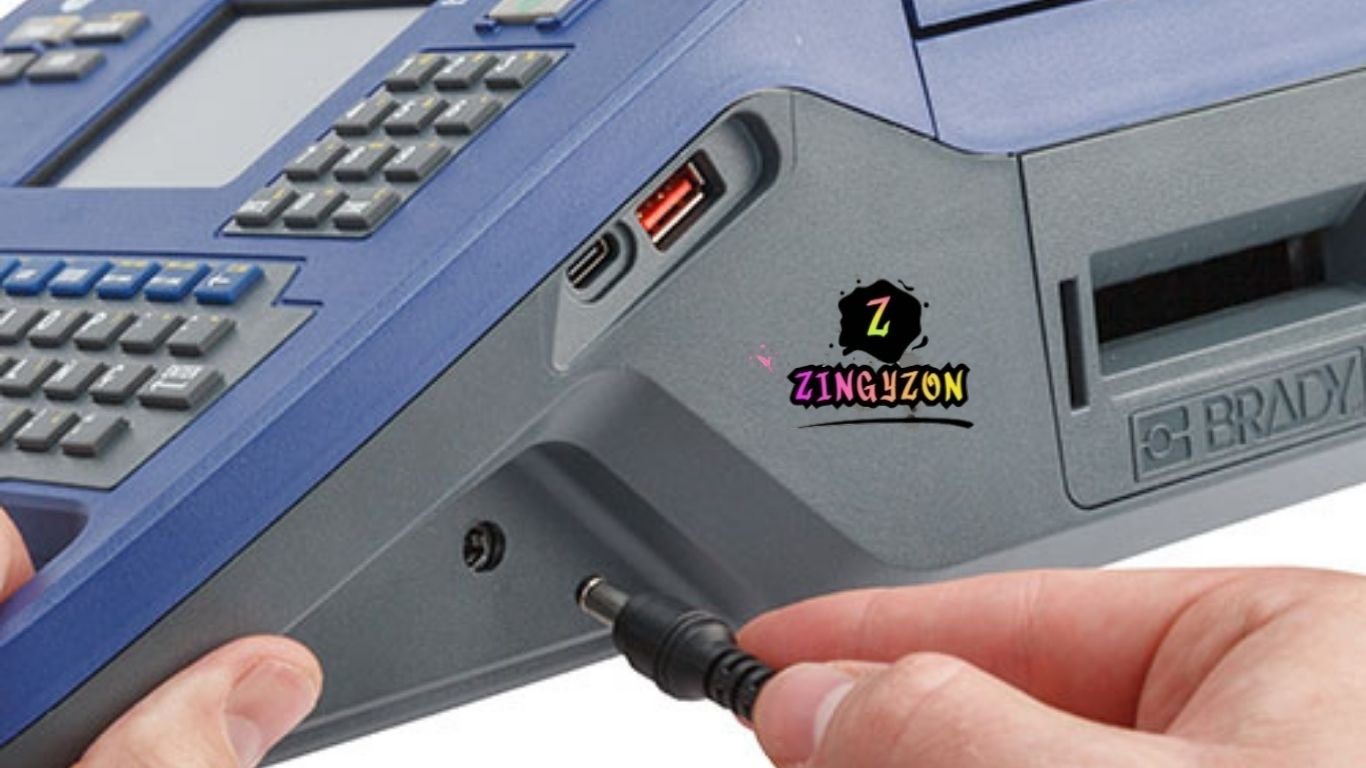
BMP71 label printer: reliable software is essential for creating and managing labels with precision. The Brady BMP71 software provides both the printer driver and label design tools, making your printer fully functional. Whether you’re setting up your BMP71 for the first time or updating your existing software, this comprehensive guide covers installation, compatibility, features, and troubleshooting tips to ensure optimal performance.
The Brady BMP71 Software is a comprehensive solution for industrial labeling, designed to help users create, manage, and print labels efficiently. Whether you are a technician in a manufacturing plant, an electrical engineer, or a lab professional, having reliable software ensures accurate labeling and seamless workflow. This guide covers everything from installation and compatibility to features, troubleshooting, and best practices for the BMP71 label printer.
What Is the Brady BMP71 Software?
The Brady BMP71 is a heavy-duty industrial label printer, widely used in electrical, laboratory, and manufacturing environments. Its software package is divided into two primary components:
Printer Driver – Enables your computer to recognize and communicate with the BMP71 via USB. Without the driver, print commands cannot be sent.
Label Design Software – Offers a user-friendly platform to create, format, and customize labels before printing. The software supports barcodes, serialization, and importing data from spreadsheets.
Compatibility and System Requirements
Before installing the Brady BMP71 software, ensure your system meets the following requirements:
- Operating System: Windows 10 or Windows 11
- RAM: Minimum 4 GB
- Disk Space: At least 1 GB free
- Connection: USB port for direct printer connection
- Permissions: Administrator rights to install drivers and updates
How to Install Brady BMP71 Software
Installing the BMP71 software is straightforward if done in the correct order:
Step 1: Install the Printer Driver
- Do not connect the printer until prompted.
- Run the driver installer and follow the on-screen instructions.
- When prompted, connect the BMP71 via USB. Windows should automatically detect the device.
Step 2: Install the Label Design Software
- Proceed to install the label design software after the driver.
- Configure workspace preferences and select the BMP71 as your default printer.
- Launch the program and ensure the printer appears under available devices.
Step 3: Configure Printer Settings
- Set label material, ribbon type, and label width (up to 50.8 mm).
- Adjust print density and alignment for precise output.
Step 4: Test the Installation
- Print a sample label to verify installation.
- If the print is unclear, recalibrate the material or adjust ribbon tension.
Frequently Asked Questions
What is Brady BMP71 Software?
The Brady BMP71 software is a complete solution for industrial label printing. It includes a printer driver and label design tools for creating, formatting, and printing labels accurately.
Is Brady BMP71 Software compatible with Windows 10 and 11?
Yes, the software supports Windows 10 and Windows 11 (64-bit) and requires at least 4 GB RAM, 1 GB free disk space, and a USB port for printer connection.
How do I install Brady BMP71 Software?
First, install the printer driver, then the label design software. Connect the printer via USB when prompted, configure label settings, and test by printing a sample label.
Can I print barcodes and QR codes with Brady BMP71 Software?
Absolutely. The software supports barcodes, QR codes, serialization, and data import from spreadsheets for bulk label printing.
What should I do if the printer is not detected?
Ensure the USB cable is secure, the driver is installed correctly, try a different USB port, or restart your computer to resolve detection issues.
How do I maintain Brady BMP71 Software and printer?
Update drivers and firmware regularly, store labels and ribbons in a cool, dry place, avoid touching the print head, and back up label templates to ensure optimal performance.
Conclusion
The Brady BMP71 software is a powerful and reliable solution for industrial labeling needs. Combining an intuitive label design platform with a robust printer driver ensures accurate, high-quality labels for manufacturing, laboratory, electrical, and safety applications. By following proper installation steps, configuring settings, and maintaining the printer, users can maximize efficiency and productivity. Whether you’re creating simple labels or handling large batch printing, the Brady BMP71 software provides all the tools necessary for seamless, professional labeling.
