

Seeing the Google Chromecast Untrusted Device error can be frustrating, especially because the message sounds more serious than it usually is. Most people assume their device has been hacked, blacklisted, or permanently damaged. In reality, that’s rarely the case.
This error is a verification failure for most users, particularly those with older Chromecast models. The trust check fails somewhere between your phone, the Google Home app, your Wi-Fi network and the Chromecast itself. When that occurs, Google refuses to complete the setup or casting.
The important thing to understand is that this is not always a normal Wi-Fi problem. Restarting your router might help, but sometimes the real issue is much deeper—expired certificates, blocked local discovery, or outdated app permissions.
Google Chromecast Untrusted Device Error Explained
Digital certificates verify that the Chromecast is a genuine Google device. Those credentials are checked on your phone or app when you set up or cast, before you can communicate. If it doesn’t work, you will receive the Untrusted Device pop-up message.
The words make it seem dangerous, but sometimes they can be misleading. In most situations, there’s no malicious activity. It is not possible to verify the device’s identity because the trust chain is missing, out of date or restricted by software or network conditions.
A useful comparison is a website certificate warning in a browser. The website may still be legitimate, but if the certificate has expired, your browser refuses to trust it. Chromecast behaves in a similar way.
Which Chromecast Models Are Most Affected?
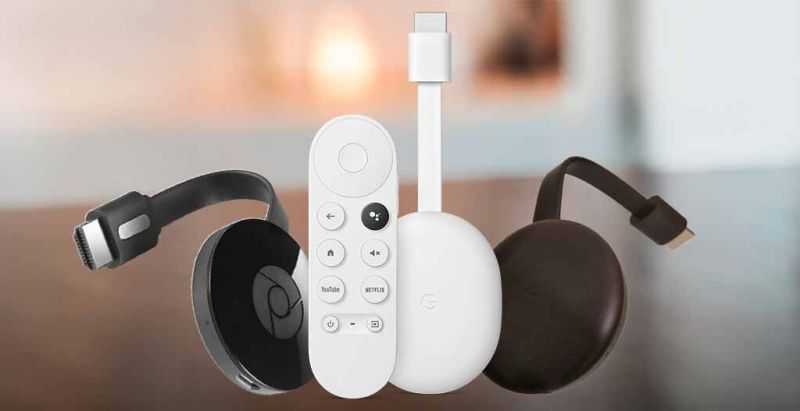
This issue affects older devices far more often than newer ones, especially the 2nd-generation Chromecast (2015) and Chromecast Audio. These were the primary models involved in the widely reported verification bug in 2025.
Newer devices such as Chromecast Ultra or Chromecast with Google TV are much less likely to experience the same certificate-related issue. They can still show similar symptoms, but the cause is often different, such as network isolation or app problems.
Many users also don’t know which Chromecast version they own, and that matters more than people think. Older hardware tends to become more fragile as modern security standards evolve, even if the device still works most days perfectly.
Why This Error Happens
Most troubleshooting guides simply throw out the term “Outdated Firmware” but it’s not enough. The underlying problem is usually that certificates are expired or that the certificate trust is broken.
Older smart devices come preloaded with security certificates intended to be valid for a few years, not forever. When those certificates expire or if the security infrastructure on the back end changes, the device can suddenly fail to log in even if you haven’t changed anything. It is possible that this occurred during the major Chromecast problem in 2025.
Another one that many people don’t consider is that Chromecast is extremely reliant on local network discovery protocols such as mDNS. Even if both devices are connected to internet, the casting may still fail if local communication is blocked by the network.
Start With the Boring Fix: Restart Everything
It seems like it’s easy to restart them, but there’s a reason why support teams advise it so frequently. Chromecast maintains session states, routing states, and pairing states for temporary networks. These can become stale, particularly after router changes or long periods of inactivity.
Turn the Chromecast off for 30 or so seconds then turn it back on. Restart the phone and/or laptop that you cast from again as well. A full reboot will clear the cached network state, which may cause discovery and trust verification problems.
It feels almost too simple, but temporary session issues cause more casting failures than people realize.
Also Read: Windows 10 Display Issues: How to Fix Common Screen Problems
Your Wi-Fi Might Be the Real Problem
One of the biggest misconceptions is that sharing the same Wi-Fi name means devices are on the same network. Modern routers are more complicated than that.
Many routers silently separate devices across 2.4 GHz and 5 GHz bands, guest networks, IoT segments, or mesh nodes. Everything appears connected from the user’s perspective, yet devices may still be unable to communicate with each other.
Guest Wi-Fi is especially problematic because it often disables device-to-device communication for security. VPNs, ad blockers, and DNS filtering can also interfere with Google services needed during discovery and setup.
Update Google Home and Let the Device Sit
Many users focus solely on Chromecast firmware and ignore the app that controls it. That’s a mistake because the Google Home app plays a major role in setup and verification.
Make sure Google Home and your phone’s operating system are up to date. Compatibility issues between the app and backend services can trigger trust-related errors even when the Chromecast itself is working fine.
If the device has been offline for a long time, patience helps. Leave it connected to power and Wi-Fi for at least 30–60 minutes so it can sync and install pending updates before you start aggressive troubleshooting.
Be Careful With Factory Reset
A factory reset is often treated like the universal fix, but that’s not always true for Chromecast trust issues. In some situations, resetting actually makes things worse.
During the 2025 bug, Google specifically advised users not to reset affected devices because the setup process required the exact verification step that was already failing. That trapped many people in a setup loop where the device reset successfully but could never finish activation.
Reset only after trying software and network fixes first. If you do proceed, use the physical button on the Chromecast and set it up again through Google Home.
The Overlooked Fix: Phone Permissions
This is one of the most under-discussed causes of Chromecast issues. Modern Android and iPhone systems restrict access to Bluetooth, nearby devices, local network discovery, and location services much more aggressively than before.
A phone can be connected to Wi-Fi and still fail to detect Chromecast devices if Google Home lacks required permissions. This happens surprisingly often after app reinstalls, phone upgrades, or OS updates.
If casting suddenly stopped after switching devices, check permissions before assuming the Chromecast is broken. It’s a small detail that solves a surprising number of cases.
Should You Replace an Old Chromecast?
In some cases, the only solution is to replace. If your Chromecast is near a decade old and you’ve tried updates, resets and network troubleshooting and it still won’t work, then you might be in a battle against outdated security support and aging hardware.
Not all the time is it a case of planned obsolescence. Security protocols are improved, encryption technology advances, and systems are updated. Over time it becomes more difficult to keep legacy devices compatible.
If you are a cast-away every day type, making the switch to a newer streaming device could save you much more time than constant troubleshooting.
Read More Tech Articles on: Zingyzon.com
FAQs
Why does my Chromecast say untrusted device?
Usually because Google Home cannot verify the device due to certificate issues, outdated firmware or local discovery being blocked.
Is the Google Chromecast untrusted device error dangerous?
No, in most cases it is not a security threat. It is usually a verification failure.
Can restarting fix Chromecast errors?
Yes, restarting the Chromecast, phone, and router often resolves temporary connection problems.
Should I reset my Chromecast?
Only after trying other fixes. Certificate-related issues may not improve after a reset.
