

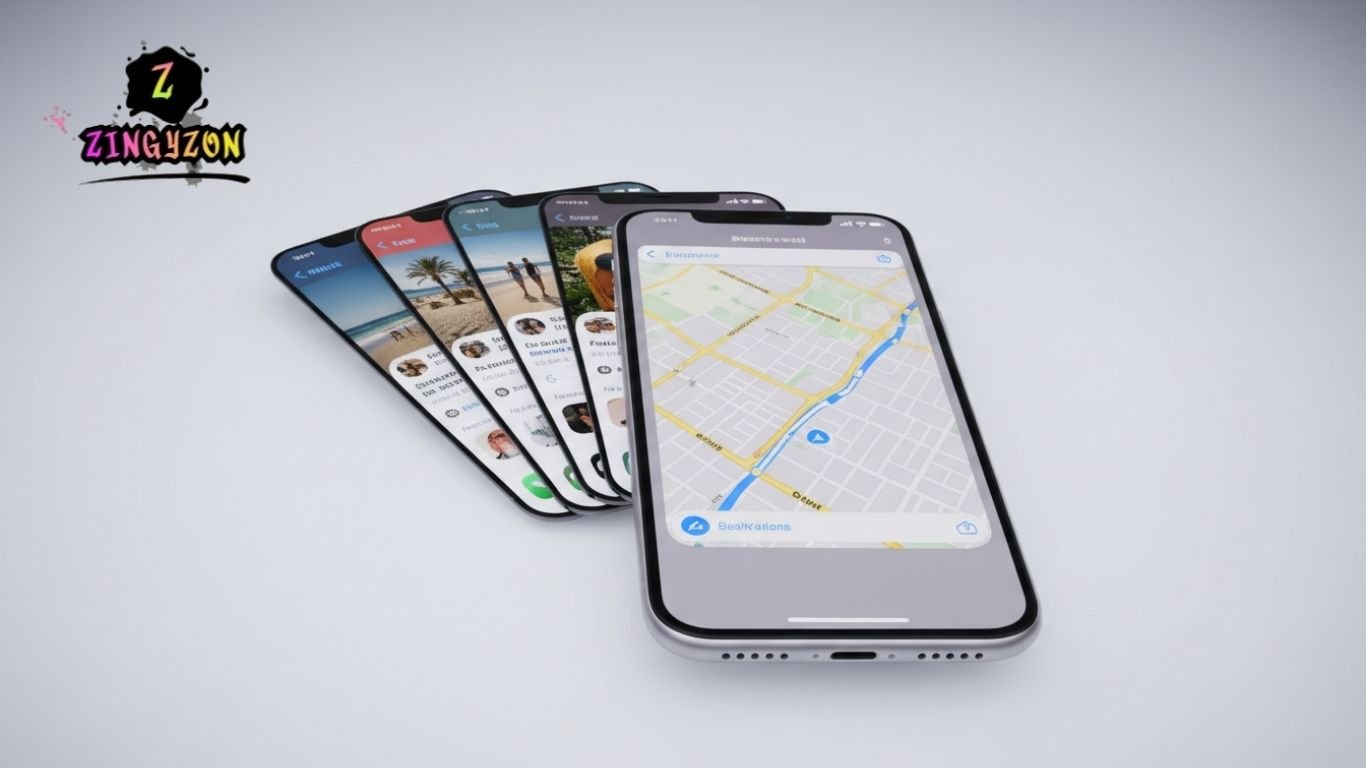
Modern iPhones and iPads are powerful multitasking devices, built to help you get more done efficiently. Yet, many users still wonder: how do you do split screen on iPhone?
While iPhones don’t include a native split-screen feature, there are smart ways to use two apps at once. This guide will walk you through all the methods—step by step—using both iPhone and iPad features.
What Is Split Screen on iPhone?
Split screen, also known as Split View, allows you to use two apps side by side. For instance, you could reply to an email while checking notes or browse the web while messaging friends.
Although this feature is fully supported on iPads, iPhones require third-party apps or alternative multitasking methods to achieve a similar experience.
Using Third-Party Apps for Split Screen on iPhone
Since iPhones don’t natively support split screen, third-party apps are the easiest solution. These apps create a dual-view layout that lets you use two apps or browser windows simultaneously.
Steps to use third-party split screen apps:
Open the App Store and download a split screen app, such as Split Screen View or Dual Browser.
- Launch the app and select the two screens you want to display.
- Use both apps at the same time—like browsing the web while messaging.
- These apps are perfect for multitasking on the go, such as watching a video while comparing information or managing multiple tasks simultaneously.
How to Use Split Screen on iPad
iPads come with Apple’s built-in Split View, making multitasking seamless. Here’s how to set it up:
Step 1: Ensure both apps support Split View. Not all apps do.
Step 2: Open the first app.
Step 3: Swipe up slightly from the bottom of the screen to access the Dock.
Step 4: Drag the second app from the Dock to the left or right side of the screen.
Step 5: Adjust the divider to control how much space each app occupies.
This setup is ideal for research, note-taking, watching tutorials, or any multitasking workflow.
How to Control Split Screen on iPad
Once Split View is active, managing your apps is simple:
- Switch apps: Tap the app you want to use.
- Resize windows: Drag the divider left or right.
- Exit Split Screen: Drag the divider completely to one side.
- Quick switch: Swipe along the bottom edge to switch between apps.
Other Ways to Multitask on iPhone
Even without native split screen, iPhones offer several multitasking tools:
Slide Over
- Open a small floating window while using another app.
- Swipe up to open the Dock.
- Drag a second app to the center of the screen.
- Perfect for checking messages or notes without leaving your main app.
Picture-in-Picture (PiP)
- Watch videos or FaceTime calls in a floating window while using other apps.
- Start a video or call.
- Swipe up (or press Home on older iPhones).
- Continue using your iPhone while the video plays in a mini-window.
App Switcher
- Quickly switch between open apps.
- Swipe up and pause (Face ID iPhones) to open the App Switcher.
- Swipe left or right to navigate open apps.
Built-in App Multitasking
Some apps have their own multitasking features:
- Safari: Open multiple tabs or windows.
- Files: Access multiple folders simultaneously.
- Notes: View and switch between several notes with ease.
Frequently Asked Questions
Can I use split screen on iPhone natively?
No, iPhones do not have a native split-screen feature. You need third-party apps or alternative multitasking features like Slide Over or PiP.
Which apps allow split screen on iPhone?
Popular options include Split Screen View, Dual Browser, and Split Web Browser.
Can I multitask with videos on iPhone?
Yes, Picture-in-Picture (PiP) allows you to watch videos in a floating window while using other apps.
Does Slide Over work on all iPhones?
Slide Over is supported on modern iPhones with iOS 14 or later.
How do I switch apps quickly on iPhone?
Use the App Switcher by swiping up and pausing or double-clicking the Home button.
Can iPads do true split screen?
Yes, iPads support native Split View, allowing two apps to run side by side seamlessly.
Conclusion
While iPhones do not have a native split-screen feature, there are several effective ways to multitask and boost productivity. By using third-party split-screen apps, Apple’s Slide Over, Picture-in-Picture (PiP), and built-in app multitasking features, you can manage multiple tasks simultaneously with ease. For iPad users, the native Split View offers true side-by-side app functionality. With these tips and tools, you can turn your iPhone into a powerful multitasking device, making it easier to browse, work, watch videos, and communicate all at once.
