

Wi-Fi has become essential in our daily lives, powering everything from smart homes to streaming devices. But not all Wi-Fi connections are the same. Your router can broadcast signals on 2.4 GHz and 5 GHz bands, and knowing which one you’re using can help improve speed, reliability, and overall network performance. This guide will show you how to check if your Wi-Fi is 2.4 GHz or 5 GHz, why it matters, and how to optimize your connection.
2.4 GHz vs 5 GHz Wi-Fi: What You Need to Know
Your Wi-Fi frequency plays a major role in both speed and coverage. Understanding the difference between 2.4 GHz and 5 GHz bands can help you get the best performance from your network.
What Are 2.4 GHz and 5 GHz Wi-Fi?
- 2.4 GHz: Offers longer range and better penetration through walls, but speeds are slower and the band is often crowded.
- 5 GHz: Provides faster speeds and a cleaner connection, but the range is shorter.
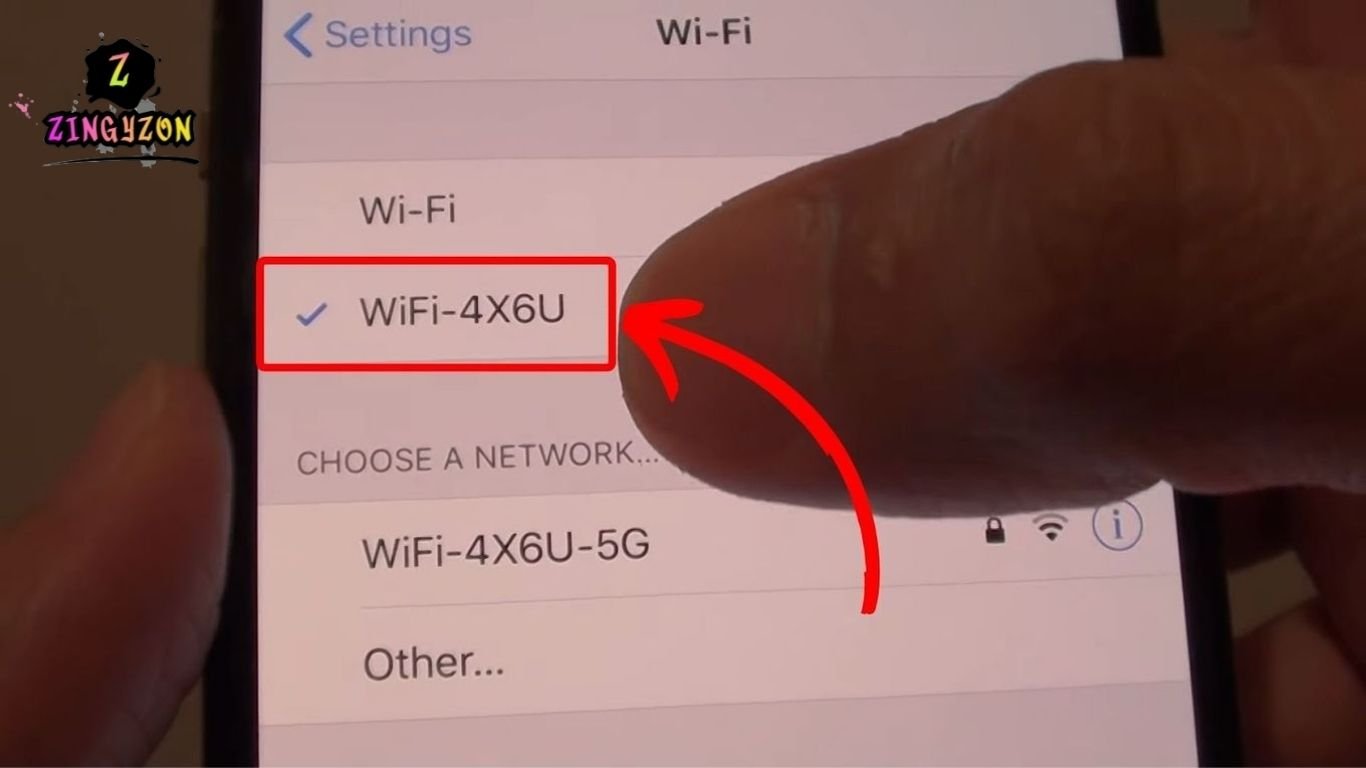
Many modern routers are dual-band, meaning they broadcast both frequencies simultaneously. If your network name (SSID) includes “2.4G” or “5G,” it already indicates which band you’re connected to.
How to Check Which Wi-Fi Band You’re Using
The method varies by device. Here’s a step-by-step guide:
On iPhone
Check the Wi-Fi name (SSID)
Look for “2.4G” or “5G” in the network name.
Example: “HomeWiFi_2.4G” = 2.4 GHz.
Use Apple’s AirPort Utility app
Enable Wi-Fi scanning under Settings > AirPort Utility, then open the app to see your frequency.
Check your router
Enter your router’s IP in Safari (e.g., 192.168.1.1) and log in. It will show the connected band.
On Android
- Go to Settings > Network & Internet > Wi-Fi.
- Tap your connected network and look for “Frequency” or “Channel.” It will display 2.4 GHz or 5 GHz.
- Optional: Use an app like Wi-Fi Analyzer for more detailed network info.
On Windows
Press Windows + R, type cmd, and press Enter.
In Command Prompt, type:
netsh wlan show interfacesLook for Channel:
- Channels 1–13 = 2.4 GHz
- Channels 36+ = 5 GHz
Alternatively, go to Settings > Network & Internet > Wi-Fi > Hardware Properties to see the band.
On Mac
Hold the Option key and click the Wi-Fi icon in the menu bar.
- Look for the Channel line:
- Channels 1–13 = 2.4 GHz
- Channels 36+ = 5 GHz
Directly on Your Router
- Open a browser and type your router’s IP (usually 192.168.0.1 or 192.168.1.1).
- Log in with your admin credentials.
- Go to Wireless Settings or Network Settings.
- Check if both 2.4 GHz and 5 GHz are active.
- Optional: Rename the bands (e.g., “Home_2.4G” and “Home_5G”) for easier switching later.
How to Switch Between 2.4 GHz and 5 GHz
Switching bands can improve speed or signal stability:
Give each band a unique name
Rename your networks in router settings, e.g., “MyWiFi_2.4G” and “MyWiFi_5G.”
Connect to your preferred band
Open Wi-Fi settings on any device and select the desired network.
Avoid automatic switching
If your device keeps switching back, forget the unwanted network in your device’s Wi-Fi settings.
How to Test Wi-Fi Band and Signal Strength
Apps like NetSpot, Wi-Fi Analyzer, and Fing help measure your Wi-Fi signal and band.
Wi-Fi strength is measured in dBm (decibel-milliwatts):
- –30 dBm: Excellent
- –67 dBm: Good for streaming
- –80 dBm: Weak signal
- –90 dBm: Unusable
2.4 GHz vs 5 GHz: Quick Comparison
| Feature | 2.4 GHz | 5 GHz |
| Speed | Moderate | Faster |
| Range | Longer | Shorter |
| Interference | Higher | Lower |
| Best for | Smart devices, large homes | Gaming, streaming, close range |
Frequently Asked Questions
How do I know if my Wi-Fi is 2.4 GHz or 5 GHz?
Check your network name (SSID) for “2.4G” or “5G,” use your device’s Wi-Fi settings, or log in to your router to see the connected band.
Can I use both 2.4 GHz and 5 GHz on the same router?
Yes, most modern routers are dual-band and can broadcast both frequencies simultaneously for different devices.
Which is better: 2.4 GHz or 5 GHz Wi-Fi?
It depends on your needs. Use 2.4 GHz for longer range and smart devices, and 5 GHz for faster speeds and streaming close to the router.
How do I check Wi-Fi frequency on iPhone or Android?
On iPhone, use AirPort Utility or check your network name. On Android, open Settings > Wi-Fi and tap the network to see the frequency.
How can I find out my Wi-Fi band on Windows or Mac?
On Windows, use Command Prompt with netsh wlan show interfaces or check network hardware properties. On Mac, hold Option and click the Wi-Fi icon to view the channel.
What should I do if my 5 GHz signal is weak?
Switch to the 2.4 GHz band for better coverage through walls and longer range, or move closer to the router to improve signal strength.
Conclusion
Knowing how to check if your Wi-Fi is 2.4 GHz or 5 GHz is essential for optimizing your home or office network. By identifying the band, you can choose the right frequency for better speed, improved coverage, and reduced interference. Use your device settings, router interface, or helpful apps to determine your Wi-Fi band and switch between 2.4 GHz and 5 GHz as needed. Understanding these differences ensures a smoother internet experience for streaming, gaming, and smart devices.
